Multi Draw new in Git master
Various approaches for reducing CPU and GPU overhead.
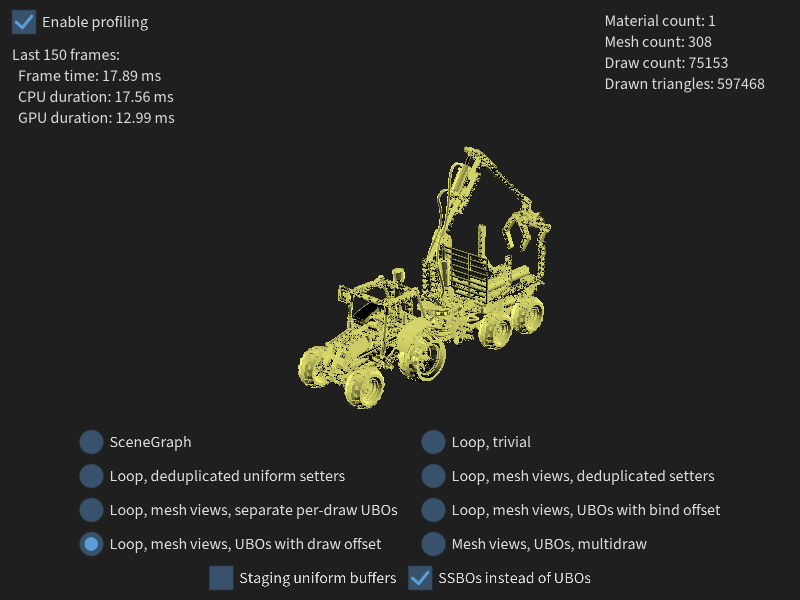
This example displays a scene, allowing to pick between various alternative drawing approaches. See the example source linked below for full description of all options.
Usage
Pass a path to a glTF file or any other supported scene format to the application to load it. Use the UI to toggle various options.
Controls:
- pointer drag rotates the scene around
- scroll or pinch zooms in/out
By default the application starts with SceneGraph rendering and a profiler enabled, you can use various command-line options to change this, which might be useful for example when recording profiling traces.
magnum-multidraw [--magnum-...] [-h|--help] [-I|--importer IMPORTER]
    [--draw-type TYPE] [--staging-buffers] [--shader-storage-buffers]
    [--no-profile] [--] file
Arguments:
file— file to load-h,--help— display this help message and exit-I,--importer IMPORTER— importer plugin to use (default: AnySceneImporter)--draw-type TYPE— pick a concrete draw type on startup (default:SceneGraph)--staging-buffers— use staging uniform buffers--shader-storage-buffers— use SSBOs instead of UBOs--no-profile—don't enable profiler on startup--magnum-...— engine-specific options (see Command-line options for details)
The -I / --importer option can be also used to pass a path to an importer plugin binary, for example to load a custom format not known to Magnum otherwise.
The --draw-type option accepts one of the following values: SceneGraph, TrivialLoop, DeduplicatedLoop, DeduplicatedLoopMeshViews, UboPerDraw, UboBindOffset, UboDrawOffset, MultiDraw.
Source
Full source code is linked below and also available in the magnum-examples GitHub repository.
The example can also build on Emscripten, in which case it embeds a glTF file for simplicity. Edit the resources.conf file and point it to an actual heavyweight *.glb file to make it useful.